Transmit live statistics online: Unterschied zwischen den Versionen
Much (Diskussion | Beiträge) Keine Bearbeitungszusammenfassung |
Much (Diskussion | Beiträge) Keine Bearbeitungszusammenfassung |
||
| (4 dazwischenliegende Versionen desselben Benutzers werden nicht angezeigt) | |||
| Zeile 1: | Zeile 1: | ||
==Overview== | ==Overview== | ||
The Volleyball Bundesliga (VBL) faces increasing competition from data-driven products in the realm of (team) sports and is striving to keep pace with market developments through digitalization.<br> | The Volleyball Bundesliga (VBL) faces increasing competition from data-driven products in the realm of (team) sports and is striving to keep pace with market developments through digitalization.<br> | ||
| Zeile 19: | Zeile 16: | ||
==Installing 'file-sender'== | ==Installing 'file-sender'== | ||
The page https://untan.gl/file-sender.html provides download information and a link to the user manual | The page https://untan.gl/file-sender.html provides download information and also a [https://untan.gl/SU-file-sender-user-guide.pdf link to the user manual]. | ||
The manual contains detailed instructions on installing, setting up, and using the software. | The manual contains detailed instructions on installing, setting up, and using the software. | ||
* The ''file-sender key'' described in the manual is assigned to each team in SAMS (similar to the SAMSscore PIN used to confirm match results at the scorer's table) and can be retrieved there.<br> | |||
[[File:SAMS file-sender key.png|300px]] | |||
* (the corresponding field is currently being added to SAMS at the location shown above) | |||
* The ''file-sender key'' from SAMS (invalid example: ''465e88c2f68b4367a3'') authenticates the team and both authorizes and encrypts the data transmission. | |||
* The key is entered for the first time at the location indicated by the mouse cursor in the image below.<br> | |||
: [[File:SAMS file-sender key.png|300px]] | |||
: A name can be assigned to the key in the field to the right; this allows it to be selected from the drop-down menu for future matches. | |||
The 'file-sender' | ==Matchday Procedure== | ||
# Launching the statistics software | |||
#* Supported software includes <u>any program capable of exporting '''live''' statistics files in .DVW format with sufficient detail</u> (see [[Spielstatistik|match statistics (in German)]]). | |||
#* Currently, this includes Data Volley 4, VolleyStation Pro, and Ace Evolution. | |||
#* If there are other potential candidates, please notify [mailto:scouting@volleyball-bundesliga.de the VBL]. | |||
# Downloading the match template | |||
#* ''Data Volley'' (DV) users can still download the match template via the Media Plugin. | |||
#: <span style="color: red">The Media Plugin must remain in offline mode throughout the entire match, however.</span> | |||
#* ''VolleyStation'' (VS) users '''should not use''' this match template, as it causes errors (VS converts the file incorrectly, leading to errors during scouting). | |||
#: The match has to be set up manually, instead. | |||
#: The VBL is already working on a solution to provide a loadable match template for all users. | |||
# Preparing the scouting software for data transmission | |||
#* This step is clearly described in the ''file-sender'' [https://untan.gl/SU-file-sender-user-guide.pdf user guide] in the "Usage" section. | |||
#* '''NOTE:''' If you exit VS scout mode, the "Media Live" service has to be restarted upon re-entering. An existing live statistics file may be overwritten. | |||
# Opening the match | |||
#* This step is also documented in the ''file-sender'' [https://untan.gl/SU-file-sender-user-guide.pdf user guide] in the "Usage" section. | |||
#* The match number to be entered can be found in your team's SAMS schedule, as shown below. | |||
#: [[file:SAMS Matchnummer.png|300px]] | |||
# Testing data export | |||
#* The settings configured in the previous sections (whether for DV or VS) ensure that live statistics data is written to a file '''AFTER''' each rally (i.e., after every point awarded). | |||
#: To verify that a file is actually being written, you must record a point in the program as a test (and delete it afterwards, of course). | |||
# Start the ''file-sender'' | |||
#* When the file-sender starts, it selects the live statistics file created in the previous section and the key saved during the [[#'file-sender' installieren|Installing 'file-sender']] step. | |||
#* If a file with '''the same match number''' already exists on the server... | |||
#: [[file:SU fs file exist.png||200px]] | |||
#: ...it can safely be overwritten. | |||
#* If, however, this match number belongs to '''a different match''', you most likely entered the wrong match number in the software. In that case, please change the match number in DV or VS and restart the process. | |||
#* In case of normal startup the following screen with the VBL logo appears: | |||
#: [[file:SU fs ready.png||400px]] | |||
#: The two green checkmarks at the bottom indicate that the local file (on the right) has been detected and that a copy is being synchronized to the server (on the left). | |||
#* ''Data Volley'' users should <span style="color: red">keep the Media Plugin in offline mode throughout the entire match</span>. | |||
#: Reason 1: Data from the Media Plugin is no longer received by the VBL server. | |||
#: Reason 2: This prevents the frequent "I/O Error 32" from occurring. | |||
The file transfer has now started, and the match can be scouted as usual.<br> | |||
The file-sender runs in the background without requiring any further action (the window can be minimized).<br> | |||
'''NOTE:''' If you exit Scout Mode in ''VolleyStation'' for any reason, you have to restart the "Media Live" service upon re-entering. You can overwrite the existing live statistics file (it is completely recreated after every point anyway). | |||
==At the end of the match== | |||
Unlike the ''Media Plugin'', the ''file-sender'' automatically detects the end of a set and of the match, generating '''a match report after each set'''. This report becomes available on the VBL homepage in the usual location after a few seconds.<br> | |||
'''In previous seasons it was required to do an upload''' via the Media Plugin to generate a match report. '''This is no longer necessary'''. | |||
== | ===Error correction=== | ||
You can re-access a completed match at any time within 24 hours of the start time to make necessary corrections.<br> | |||
(NOTE: When using ''VolleyStation'', do not forget to reactivate "Media Live" upon re-entering the match.) | |||
VolleyStation | |||
===Upload of the live statistics file by the home team (no longer required)=== | |||
* Since the ''file-sender'' continuously transmits the generated live statistics file to the VBL server (after every completed rally), the file is fully available there once the match ends and '''does not need to be uploaded manually'''. | |||
* The statistics file appears in the SAMS member area ('''home-dvw''') just as if the user had uploaded it themselves. | |||
* The file can be overwritten by uploading it again, allowing for error corrections. | |||
The | |||
===Uploading the live statistics file (away team)=== | |||
* The away team also uploads the generated live statistics file to the SAMS member area ('''away-dvw'''), if available. Please refer to the [http://wiki.sams-server.de/wiki/Memberpage:match_redvw_upload SAMS-Wiki]. | |||
* The upload can be repeated later to allow for error corrections. | |||
===Comments=== | |||
* Comments regarding the statistics files for all matches can be posted in the SAMS member area. | |||
[[Kategorie:Spielbetrieb]][[Kategorie:Sport]][[Kategorie:Scouting]] | |||
Aktuelle Version vom 8. September 2026, 08:58 Uhr
Overview
The Volleyball Bundesliga (VBL) faces increasing competition from data-driven products in the realm of (team) sports and is striving to keep pace with market developments through digitalization.
The aim is to generate added value for sponsors and fans by introducing new, marketable products (such as live web and stream statistics, AI-based highlight clipping, fantasy manager games, MVP voting, and more).
For a long time, the Data Volley statistics software — specifically its integrated Media Plugin — was the only option for the standardized transmission of live statistics.
Data Volley still holds an estimated 70% share of the professional club market worldwide. However, the Media Plugin’s data transmission capabilities no longer meet modern requirements.
The Media Plugin transmits only a fraction of the data that can be captured by statistics software during a match. Furthermore, since the plugin is an integral part of the Data Volley product, users of competing software had no way to transmit live statistics.
In collaboration with statistics provider Science Untangled, the VBL introduced the file-sender tool, ready to use as early as the 2025/26 season. This tool is capable of transmitting ALL data captured by statistics software during a match to the VBL servers.
What is the file-sender?
The file-sender is a small add-on application that captures statistical data - entered by the statistician into their statistics software - in the background and transmits it via the Internet to the VBL server.
- The file-sender does not only support Windows devices but also Apple and Linux systems.
- It supports all software products that meet specific requirements (listed below).
- This gives every VBL club the freedom to choose its own statistics software.
Installing 'file-sender'
The page https://untan.gl/file-sender.html provides download information and also a link to the user manual. The manual contains detailed instructions on installing, setting up, and using the software.
- The file-sender key described in the manual is assigned to each team in SAMS (similar to the SAMSscore PIN used to confirm match results at the scorer's table) and can be retrieved there.

- (the corresponding field is currently being added to SAMS at the location shown above)
- The file-sender key from SAMS (invalid example: 465e88c2f68b4367a3) authenticates the team and both authorizes and encrypts the data transmission.
- The key is entered for the first time at the location indicated by the mouse cursor in the image below.
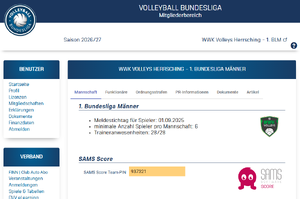
- A name can be assigned to the key in the field to the right; this allows it to be selected from the drop-down menu for future matches.
Matchday Procedure
- Launching the statistics software
- Supported software includes any program capable of exporting live statistics files in .DVW format with sufficient detail (see match statistics (in German)).
- Currently, this includes Data Volley 4, VolleyStation Pro, and Ace Evolution.
- If there are other potential candidates, please notify the VBL.
- Downloading the match template
- Data Volley (DV) users can still download the match template via the Media Plugin.
- The Media Plugin must remain in offline mode throughout the entire match, however.
- VolleyStation (VS) users should not use this match template, as it causes errors (VS converts the file incorrectly, leading to errors during scouting).
- The match has to be set up manually, instead.
- The VBL is already working on a solution to provide a loadable match template for all users.
- Preparing the scouting software for data transmission
- This step is clearly described in the file-sender user guide in the "Usage" section.
- NOTE: If you exit VS scout mode, the "Media Live" service has to be restarted upon re-entering. An existing live statistics file may be overwritten.
- Opening the match
- This step is also documented in the file-sender user guide in the "Usage" section.
- The match number to be entered can be found in your team's SAMS schedule, as shown below.
- Testing data export
- The settings configured in the previous sections (whether for DV or VS) ensure that live statistics data is written to a file AFTER each rally (i.e., after every point awarded).
- To verify that a file is actually being written, you must record a point in the program as a test (and delete it afterwards, of course).
- Start the file-sender
- When the file-sender starts, it selects the live statistics file created in the previous section and the key saved during the Installing 'file-sender' step.
- If a file with the same match number already exists on the server...
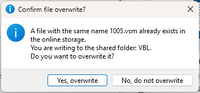
- ...it can safely be overwritten.
- If, however, this match number belongs to a different match, you most likely entered the wrong match number in the software. In that case, please change the match number in DV or VS and restart the process.
- In case of normal startup the following screen with the VBL logo appears:
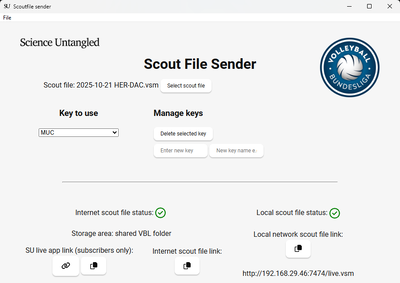
- The two green checkmarks at the bottom indicate that the local file (on the right) has been detected and that a copy is being synchronized to the server (on the left).
- Data Volley users should keep the Media Plugin in offline mode throughout the entire match.
- Reason 1: Data from the Media Plugin is no longer received by the VBL server.
- Reason 2: This prevents the frequent "I/O Error 32" from occurring.


The file transfer has now started, and the match can be scouted as usual.
The file-sender runs in the background without requiring any further action (the window can be minimized).
NOTE: If you exit Scout Mode in VolleyStation for any reason, you have to restart the "Media Live" service upon re-entering. You can overwrite the existing live statistics file (it is completely recreated after every point anyway).
At the end of the match
Unlike the Media Plugin, the file-sender automatically detects the end of a set and of the match, generating a match report after each set. This report becomes available on the VBL homepage in the usual location after a few seconds.
In previous seasons it was required to do an upload via the Media Plugin to generate a match report. This is no longer necessary.
Error correction
You can re-access a completed match at any time within 24 hours of the start time to make necessary corrections.
(NOTE: When using VolleyStation, do not forget to reactivate "Media Live" upon re-entering the match.)
Upload of the live statistics file by the home team (no longer required)
- Since the file-sender continuously transmits the generated live statistics file to the VBL server (after every completed rally), the file is fully available there once the match ends and does not need to be uploaded manually.
- The statistics file appears in the SAMS member area (home-dvw) just as if the user had uploaded it themselves.
- The file can be overwritten by uploading it again, allowing for error corrections.
Uploading the live statistics file (away team)
- The away team also uploads the generated live statistics file to the SAMS member area (away-dvw), if available. Please refer to the SAMS-Wiki.
- The upload can be repeated later to allow for error corrections.
Comments
- Comments regarding the statistics files for all matches can be posted in the SAMS member area.